How to Configure Customer Payment Terms and Credit Policies in Invent ERP
Learn how to define payment schedules, credit periods, and customer payment conditions to improve cash flow management.
Why Payment Terms Matter?
Setting clear payment terms is essential for managing your company's cash flow and ensuring consistency across invoices and sales orders. Invent ERP allows you to define flexible payment structures — whether it's upfront payments, split installments, or delayed due dates.
- Clarity for customers and vendors: Everyone knows when payment is due.
- Accurate due dates on invoices: Automatically calculated.
- Better cash flow forecasting: Plan collections and disbursements.
- Internal consistency: Applied across contracts, orders, and invoices.
Step-by-Step Process
Step 1: Quick Add from Within a Quotations, Purchase Orders, or Invoices
One of the fastest ways to create a payment term is by using Invent ERP’s Quick Add feature.
Go to any Quotations, Sales Orders, Purchase Orders, Invoices. In the Payment Terms field, click on Quick Add A pop-up window will appear.
This method is useful when you're creating a transaction and want to define a new term without navigating away.
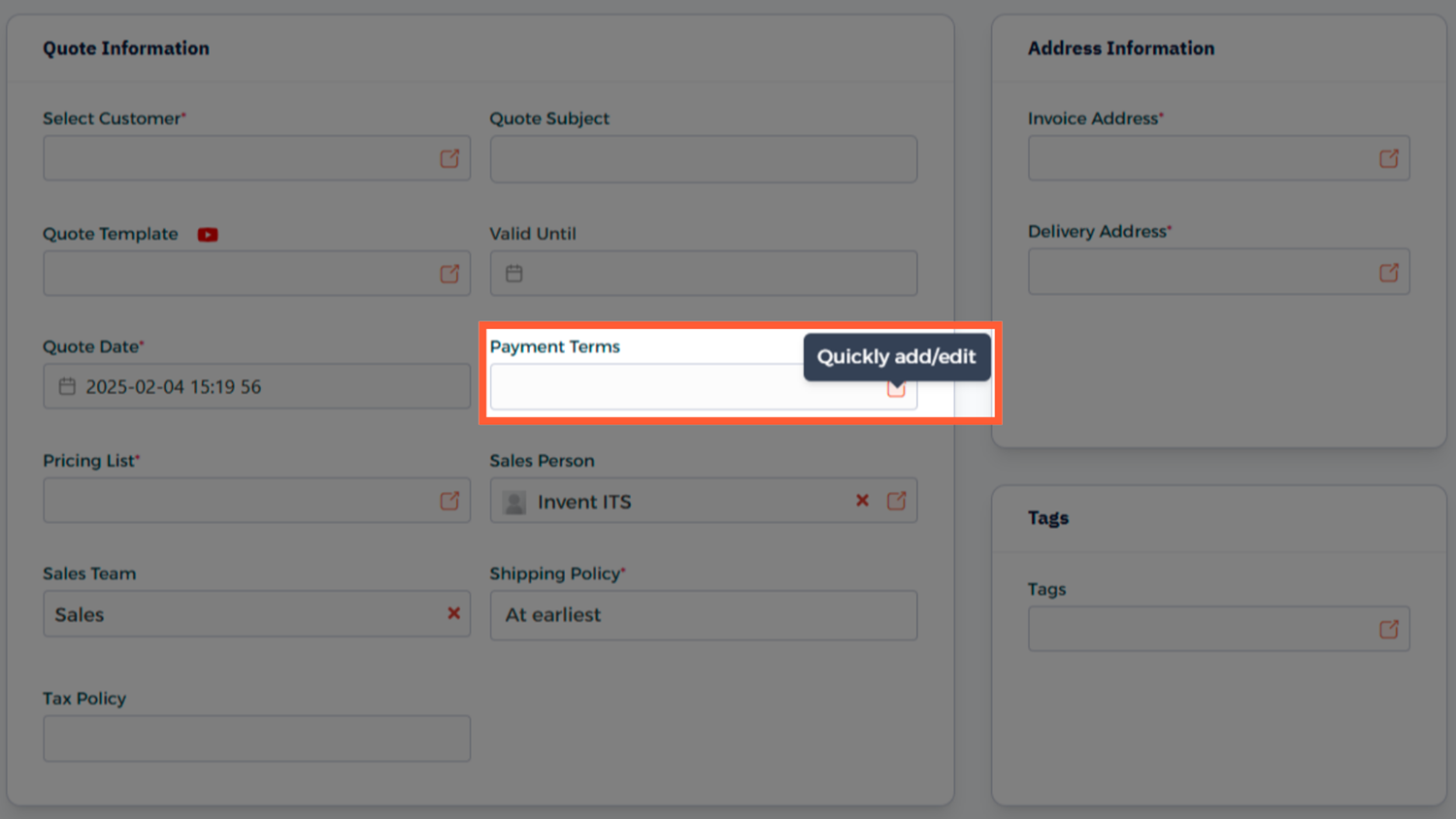
Step 2: Create a Payment Term
Another option is to create a term from the dropdown list:
- In any transaction, click on the Payment Terms field
- Scroll to the bottom of the dropdown menu and click Create New
- This is helpful for on-the-go term creation during sales or billing.
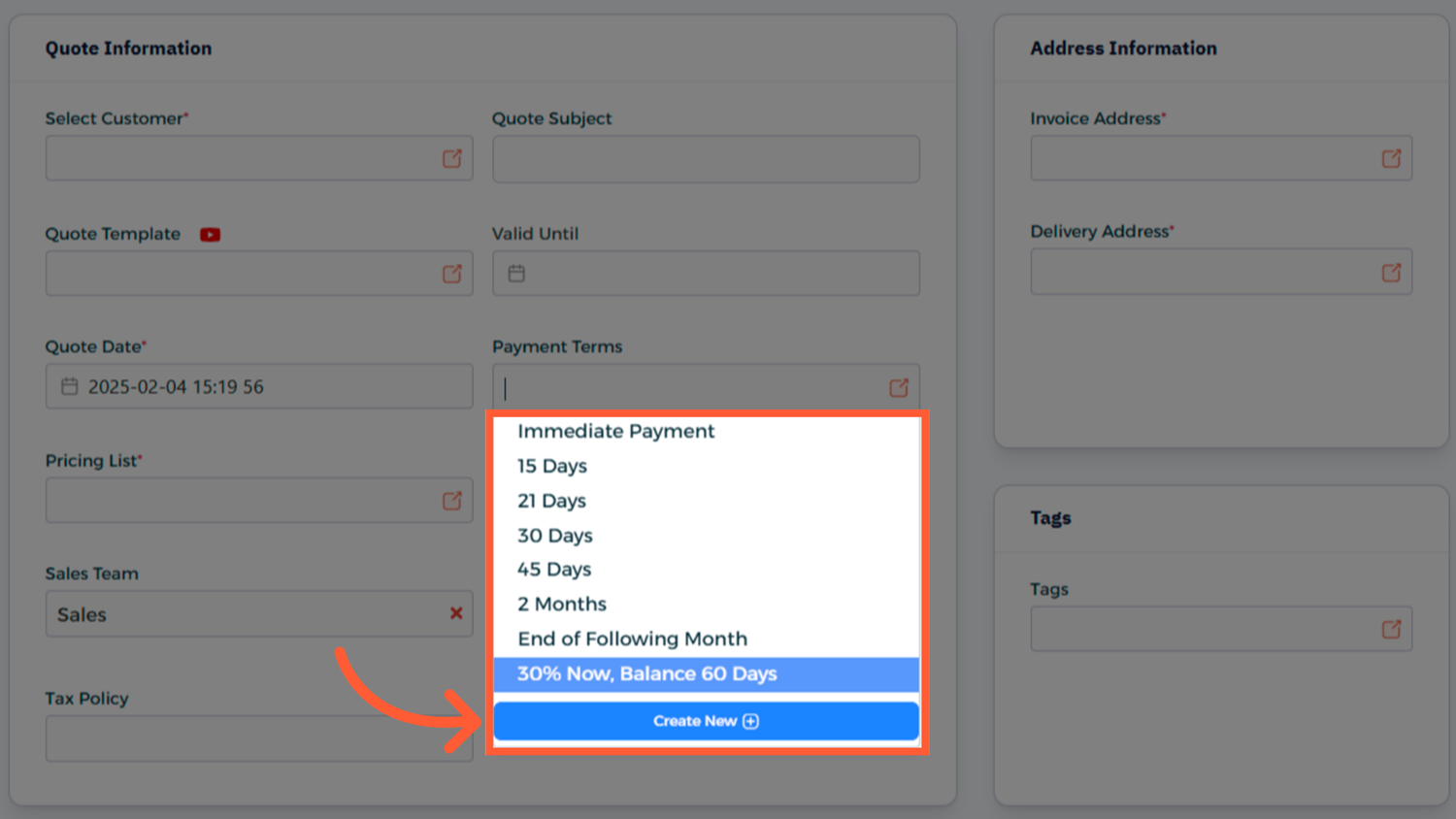
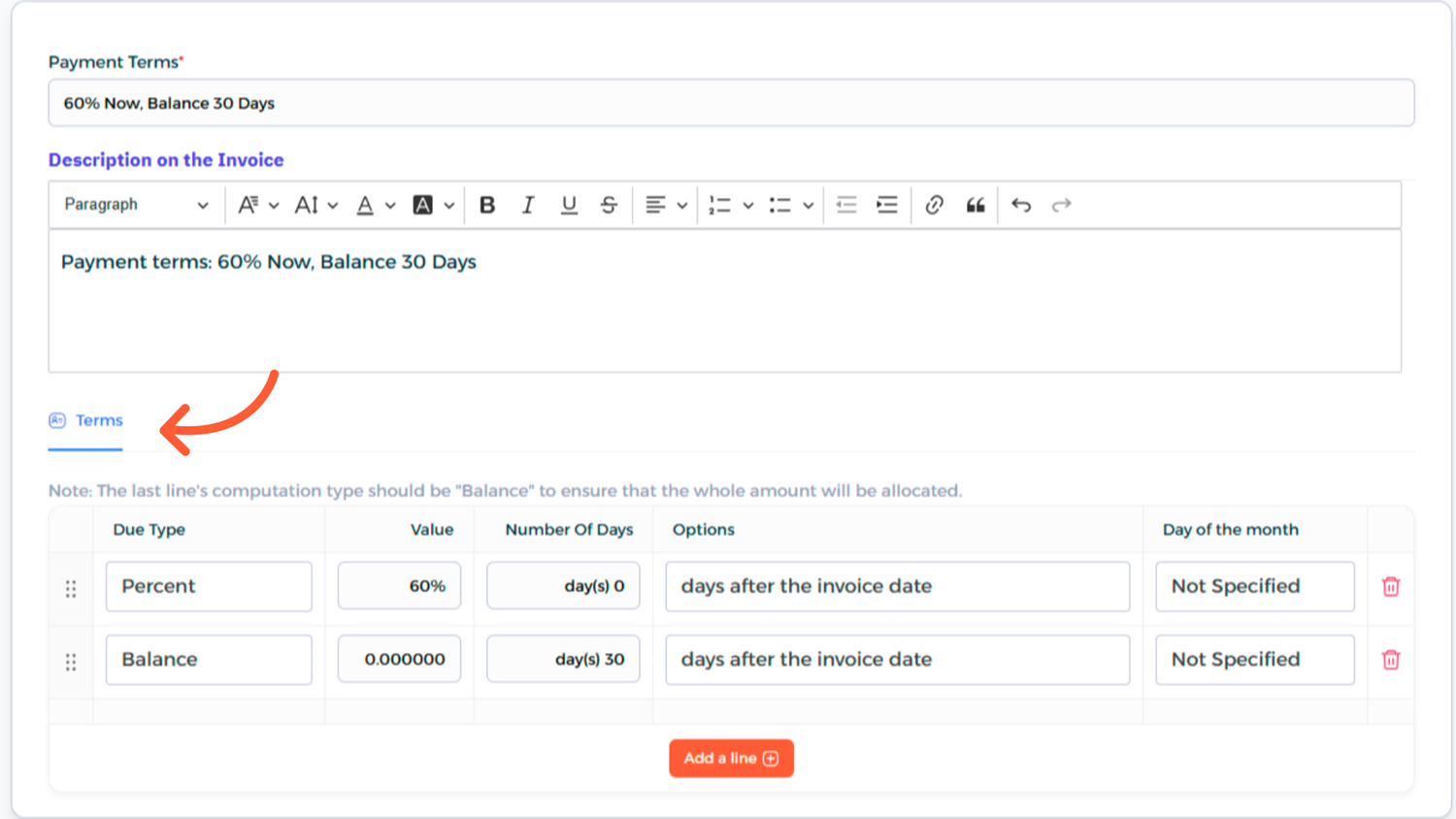
Step 3: Configure the Payment Term Details
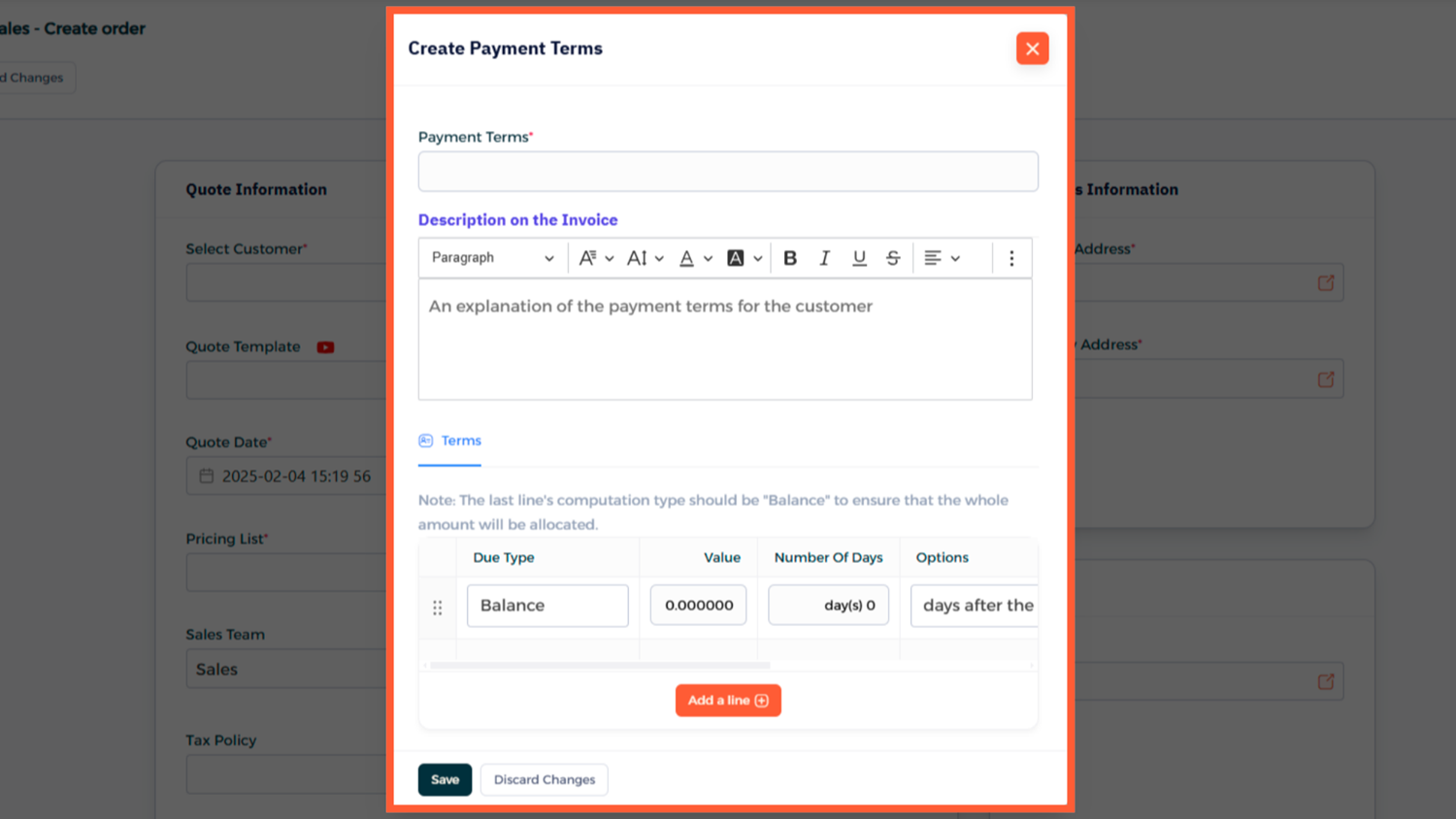
To manage existing terms fully: Navigate to Main Menu → Accounting → Configuration → Invoicing → Payment Terms.
Step 4: Access All Terms for Editing or Review
To manage existing terms more fully:
- Go to Main Menu → Accounting → Configuration → Invoicing → Payment Terms
- You'll see a complete list of your currently defined terms
- This area lets you view, search, and organize all payment terms in your system
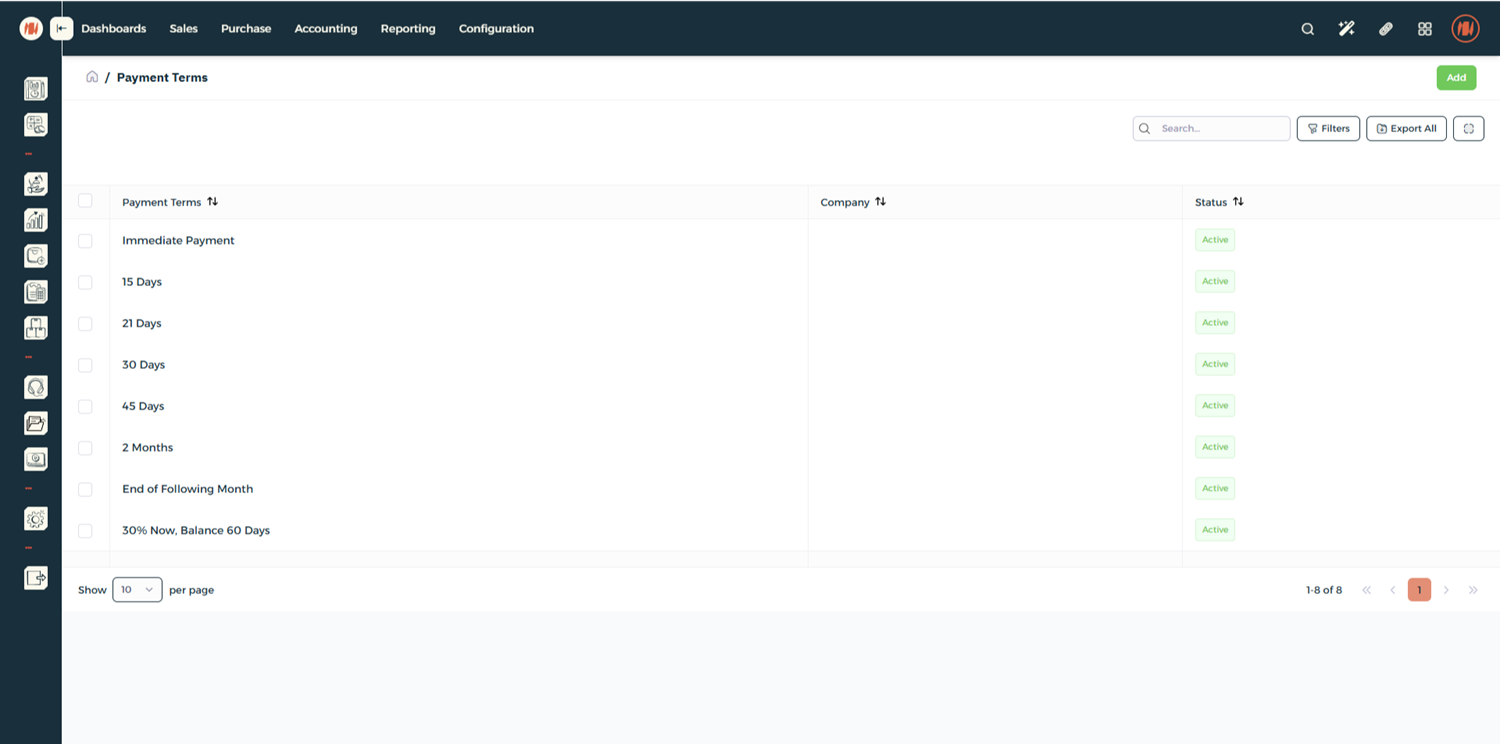
Step 5: Edit or Manage Existing Payment Terms
- To make changes, click on any existing payment term in the list
- You can update the name, description, or terms
- This is useful when policies change or corrections are needed
Step 6: Using Payment Terms on Transactions
After creation, payment terms will be available in:
- Quotations
- Sales Orders
- Purchase Orders
- Invoices
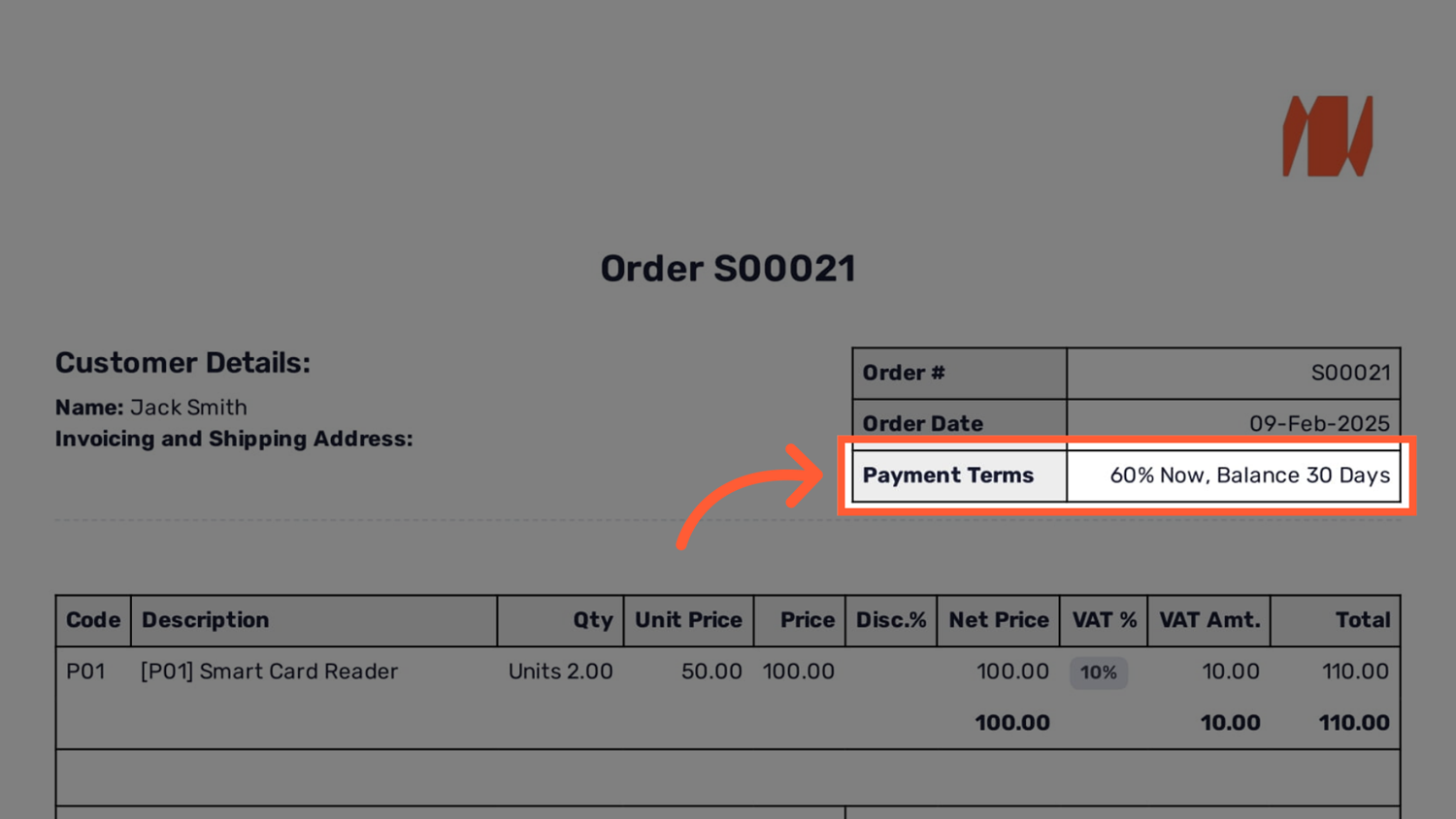
They will automatically calculate due dates and appear on documents and financial reports.
Notes & Tips
- Use clear and descriptive names (e.g., "50% Now – Balance in 30 Days").
- Assign default terms to customers and vendors for automation.
- Regularly review active terms to ensure accuracy and relevance.
FAQ
Q: Can I set mixed terms like part in advance, part later? Yes. You can define multiple lines within a single payment term (e.g., 50% now, 50% in 30 days).
Q: Will editing a payment term affect past invoices? No. Changes only apply to new transactions going forward.
Q: What happens if no term is selected? The system will use the default payment policy defined for the customer or vendor, or apply the system default (often "Immediate Payment").